2. Setting Up Codespaces
info
GitHub Codespaces provides an isolated cloud environment where you can build and test your Docker images without cluttering your local machine.
Launching a Codespace
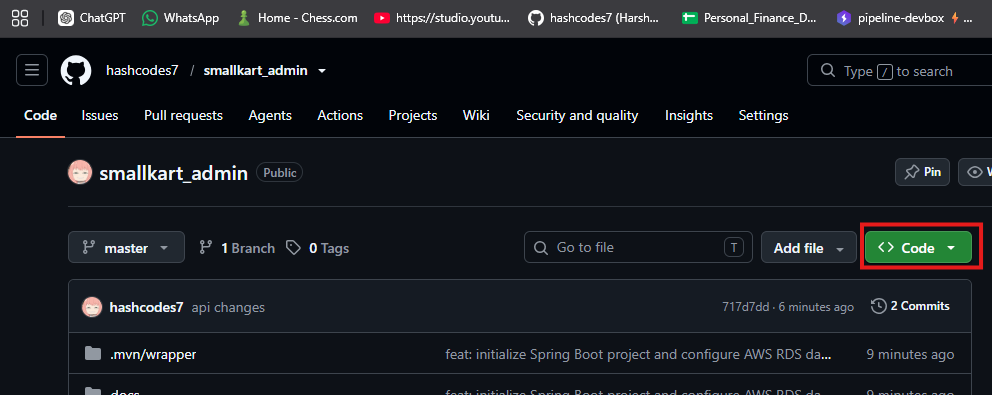
- Navigate to your GitHub repository.
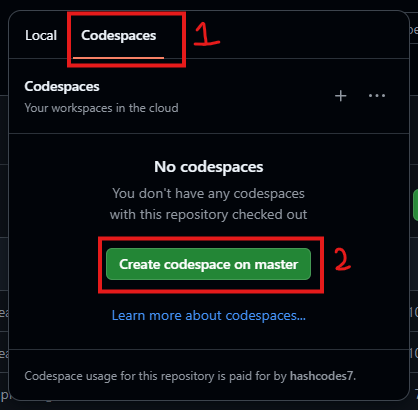
- Click on the Code button, select the Codespaces tab, and click the
+to create a new Codespace.
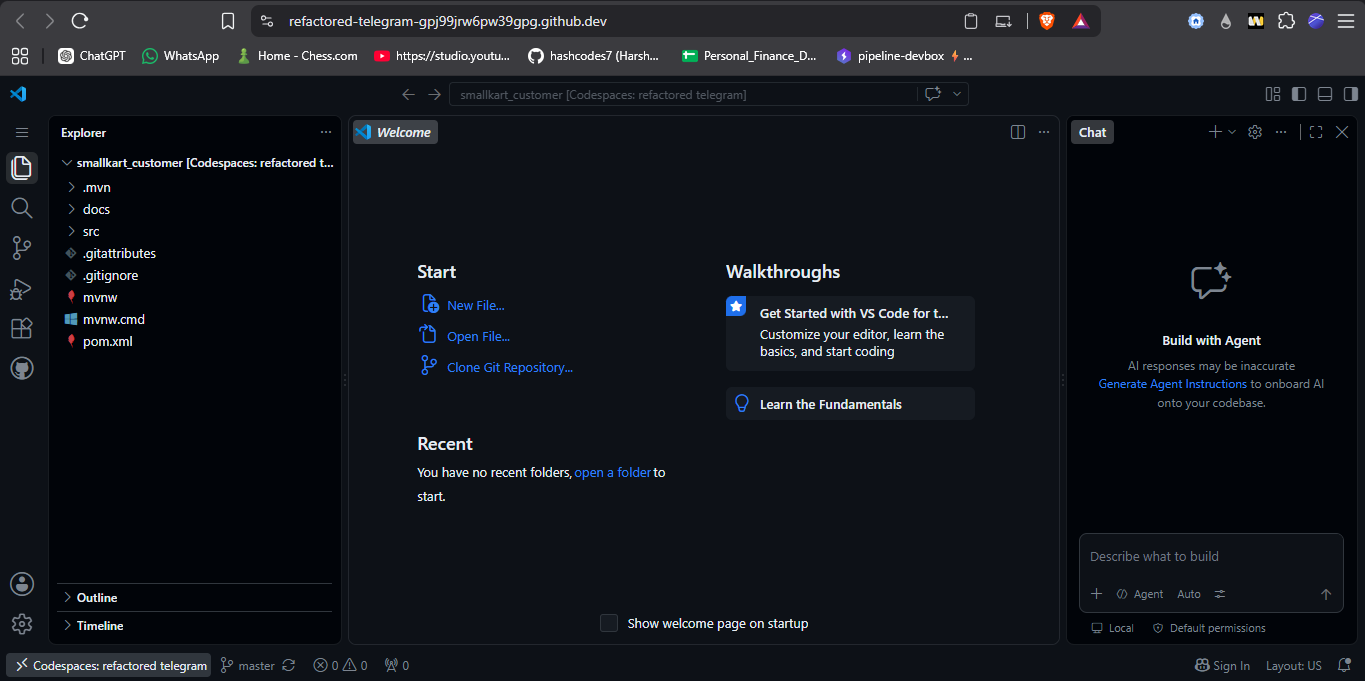
Once it launches, it will open a fully functional VS Code environment in your browser!
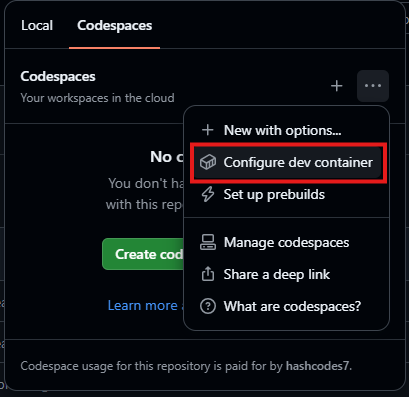
Configuring the Environment
To ensure your Java environment is set up correctly in the Codespace, create a .devcontainer folder in your project root.
devcontainer.json
Create a file at .devcontainer/devcontainer.json and paste the following configuration:
{
  "name": "Java & MySQL Dev Environment",
  "image": "mcr.microsoft.com/devcontainers/java:1-17-bullseye",
  "features": {
    "ghcr.io/devcontainers/features/docker-in-docker:2": {}
  },
  "forwardPorts": [8080, 3306],
  "customizations": {
    "vscode": {
      "extensions": [
        "vscjava.vscode-java-pack",
        "vscjava.vscode-spring-initializr",
        "vscjava.vscode-spring-boot-dashboard"
      ]
    }
  }
}
warning
After saving this file, VS Code will prompt you to Rebuild the Container. You must click Rebuild to apply these configurations.
Wait for the container to rebuild completely.
Now proceed to Converting To Jar File.