Chapter 7.2 App Deployment on EC2 - Deploy Docker Image on EC2
Lets start by installing Docker
sudo dnf update -y
sudo dnf install -y docker

Once Installed, Run docker
sudo systemctl start docker
Make it Start Automatically, Enable Docker
sudo systemctl enable docker

(optional)Configure to let users use docker instead of just Superuser
check your identity using command whoami

now give docker permission to yourself so you wont have to touch it with root user everytime
sudo usermod -aG docker <whichever user you are in above pic>

after this restart the ssm session
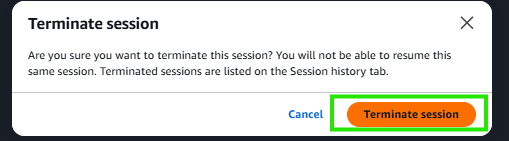 and run a new ssm session

and this time you should be able to run command without using root user now we can continue with our setup
Here we are at a special Junction. we have to make a architectural choice
Kafka: Inside Docker vs Outside Docker
| Factor | Kafka inside Docker | Kafka outside Docker |
|---|---|---|
| Installation | Only Docker needed | Kafka installed on EC2 |
| Networking | Simple: kafka:9092 | More configuration required |
| Deployment | docker compose up | Kafka managed separately |
| Reproducibility | 🟢 High | 🟡 Medium |
| EC2 cleanliness | 🟢 Clean | 🟡 Kafka files/processes on EC2 |
| BigKart fit | 🟢 Recommended | 🟡 Good |
| Production AWS | Usually managed Kafka (MSK) | Usually managed Kafka (MSK) |
Our choice
Kafka inside Docker
EC2
└── Docker Compose
     ├── bigkart_admin
     ├── bigkart_customer
     └── kafka
why? because we want easy manageability of everything using docker for this we made 1 change in our app's application.properties file.
Whats Docker Compose
its a plugin of docker which reduces the managability of handling multiple docker images, eg one for admin, one for customer and one for kafka. we can simply write our configuration of all apps inside the docker-compose.yml file and thats it. Install docker compose easily by these commands
sudo mkdir -p /usr/local/lib/docker/cli-plugins

sudo curl -SL https://github.com/docker/compose/releases/download/v5.5.0/docker-compose-linux-x86_64 \
  -o /usr/local/lib/docker/cli-plugins/docker-compose

sudo chmod +x /usr/local/lib/docker/cli-plugins/docker-compose
docker compose version
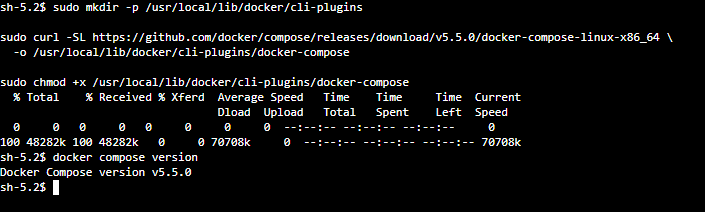
next you can start setting up project since everything is installed in EC2 Machine