Chapter 10 Depoly Docker Image Docker of EC2
go to home location of user using cd ~ command
check location using pwd command

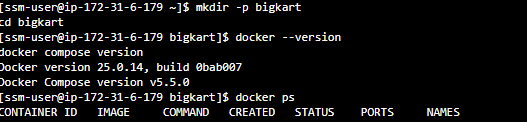
now we will quickly check some things before moving use these commands -
- make a folder inside the home/ssm-folder we are in, with name of bigkart
- check docker version
- check docker compose version
- check docker ps to see if docker is running
mkdir -p bigkart
docker --version
docker compose version
docker ps
now we will write script to install and run all 3 images
from /home/ssm-user/bigkart use this command
nano docker-compose.yml
next write this content inside
services:

  kafka:
    image: apache/kafka:4.0.1
    container_name: bigkart-kafka
    environment:
      KAFKA_NODE_ID: 1
      KAFKA_PROCESS_ROLES: broker,controller

      KAFKA_LISTENERS: PLAINTEXT://:9092,CONTROLLER://:9093
      KAFKA_ADVERTISED_LISTENERS: PLAINTEXT://kafka:9092

      KAFKA_LISTENER_SECURITY_PROTOCOL_MAP: CONTROLLER:PLAINTEXT,PLAINTEXT:PLAINTEXT
      KAFKA_CONTROLLER_LISTENER_NAMES: CONTROLLER
      KAFKA_CONTROLLER_QUORUM_VOTERS: 1@kafka:9093

      KAFKA_OFFSETS_TOPIC_REPLICATION_FACTOR: 1
      KAFKA_TRANSACTION_STATE_LOG_REPLICATION_FACTOR: 1
      KAFKA_TRANSACTION_STATE_LOG_MIN_ISR: 1

      KAFKA_GROUP_INITIAL_REBALANCE_DELAY_MS: 0

    volumes:
      - kafka-data:/var/lib/kafka/data

    networks:
      - bigkart-network


  bigkart_admin:
    image: sarwvidya/bigkart_admin:latest
    container_name: bigkart-admin
    ports:
      - "8081:8081"

    environment:
      SPRING_KAFKA_PRODUCER_BOOTSTRAP_SERVERS: kafka:9092

    depends_on:
      - kafka

    networks:
      - bigkart-network


  bigkart_customer:
    image: sarwvidya/bigkart_customer:latest
    container_name: bigkart-customer
    ports:
      - "8080:8080"

    environment:
      SPRING_KAFKA_CONSUMER_BOOTSTRAP_SERVERS: kafka:9092

    depends_on:
      - kafka

    networks:
      - bigkart-network


networks:
  bigkart-network:
    driver: bridge


volumes:
  kafka-data:
This compose script contains all options of running your docker image
Press Ctrl + O to save it and CTRL + X to come out of editor
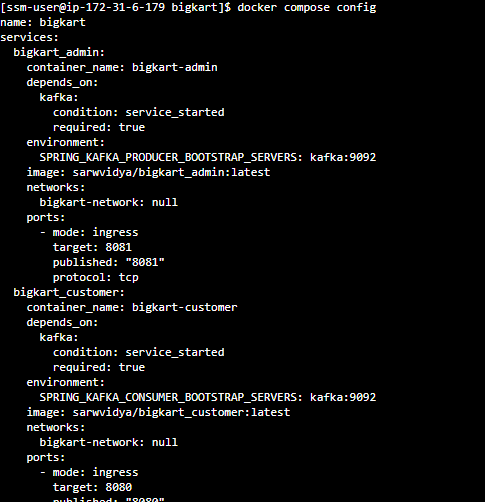
check using docker componse config to see all went good
Running Docker Images all at once
use docker componse up -d to run all images

Verify Images are running
use docker compose ps and see which images are running

you can see performance of both apps by
docker ps
curl -v http://localhost:8080
curl -v http://localhost:8081
This marks your local deployment. app is running.
for your global deployment, you need to enable these ports in your security rules
go to EC2 -> Security -> Security Group
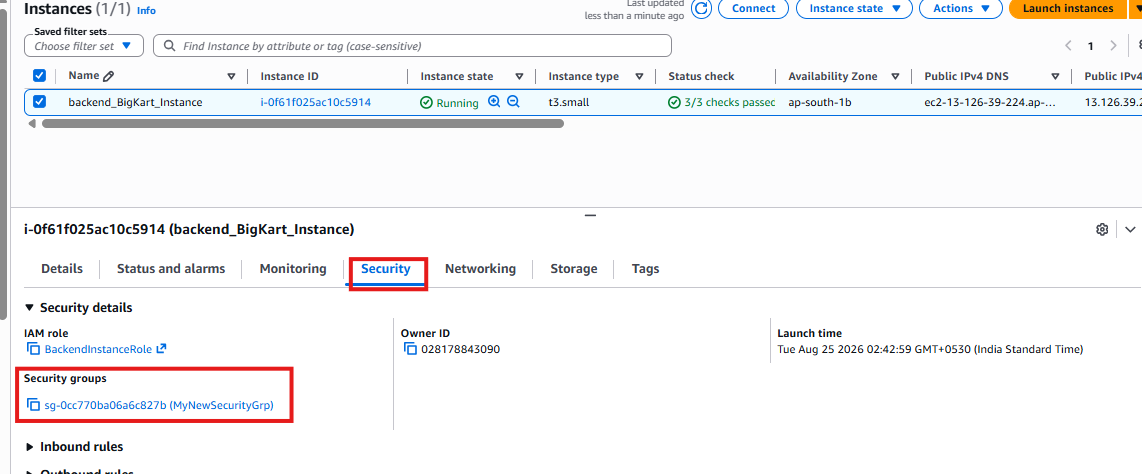
and open it

click add rule and add these 2 rules to open these 2 ports of our ec2


save it and its done. now you can access backend from anywhere. to access it go to EC2
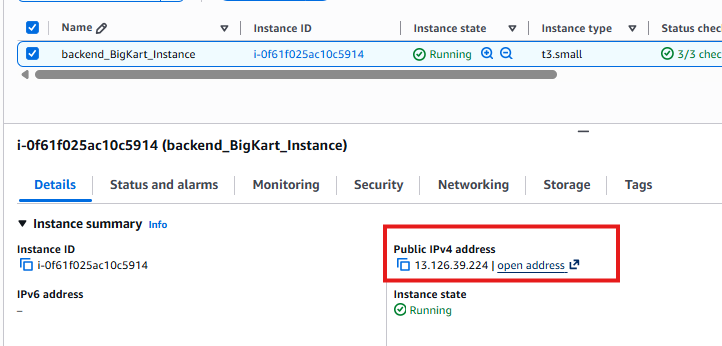 add 8080 or 8081 in end according to application you want to access
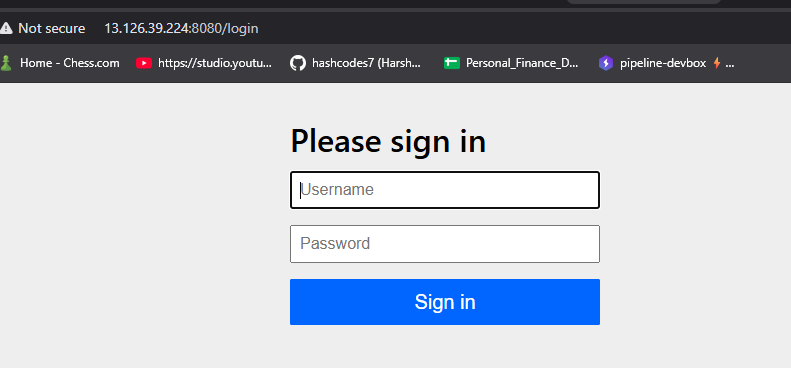
Thats it.